
Let’s talk about how to change font size on your WordPress blog.
When you’re just getting started with blogging, wanting to change the font size for various text elements across your blog—ranging from your default site-wide paragraph text size, to changing how large your headings appear to readers—it’s surprisingly not intuitive to figure this out.
With all the progress WordPress has made in making blogging vastly more accessible and easy to learn, this is one gap that’s still sort of missing.
It’s still not easy to figure out how to change your font size in WordPress (unless you have a great theme). Even still, it took me some time to learn this on my own. And to be clear, there are actually multiple different ways to change font size on your WordPress blog. And in case you’re wondering, my blog’s font size here is 16pt… and here’s much more about fonts & my other blog layout choices.
We’re going to walk through each of them and I’ll show you which ones are the smartest ways to go about making these changes and when—without negatively impacting your blog SEO or site readability.
How to Change Font Size on Your WordPress Blog (3 Simple Ways)
- Changing Site-Wide Font Size in Your Theme Settings
- Using Custom CSS to Change Font Sizes
- Using the Block Editor
Disclosure: Please note that some of the links below are affiliate links and at no additional cost to you, I’ll earn a commission. Know that I only recommend products and services I’ve personally used and stand behind. When you use one of my affiliate links, the company compensates me, which helps me run this blog and keep all of my in-depth content free of charge for readers (like you).
Alright, now let’s dive in!
1. Changing Site-Wide Font Size in the WordPress Customizer
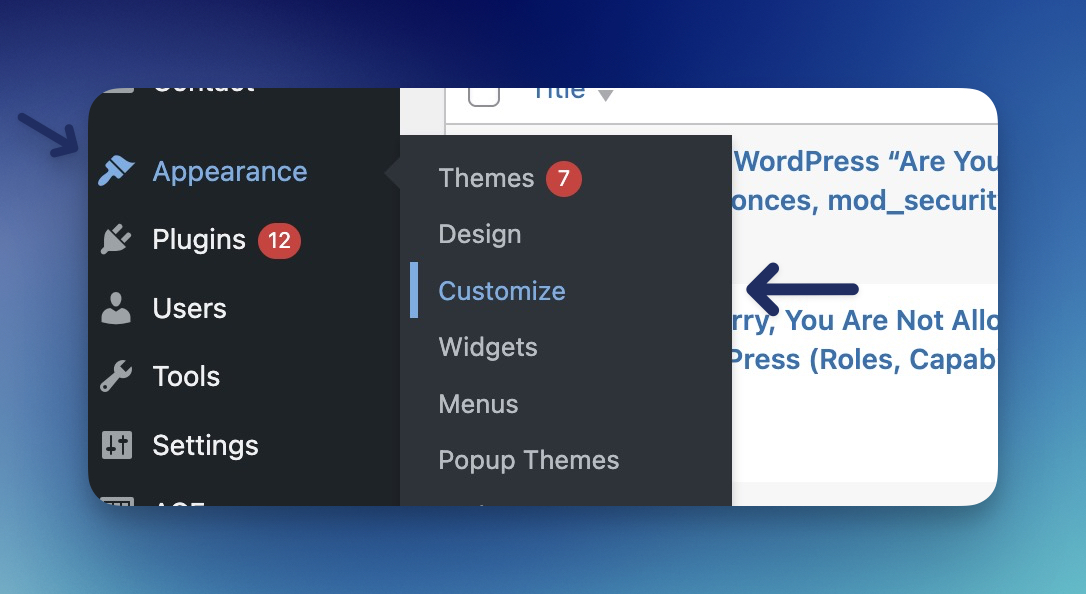
The easiest and safest way to adjust your font sizes across your blog is through the WordPress Customizer — this is where most themes put global typography controls.
You can use this to change your site-wide body text size, heading sizes, and sometimes even font families — all without touching code.
Here’s how:
- In your WordPress dashboard go to Appearance → Customize.
- Look for a section called Typography, Fonts, or Global Styles (names vary by theme).
- Inside that section you’ll usually see live controls for font sizes:
- Body text (paragraphs)
- Headings (H1, H2, H3, etc.)
- Sometimes small text elements like captions or meta info
- Adjust the font size sliders or inputs until you get the look you want.
- Preview your site in the Customizer and click Publish when you’re happy.
You may also be using a WordPress theme that offers settings in this area that you can customize. No matter how your site is set up, the Appearance tab is a great starting point for customizing font sizes in your theme.
By using the Customizer, your changes apply consistently across your blog — no CSS hacks or plugins required. If your theme doesn’t offer any typography controls at all in the Customizer, that’s a good sign it might be time to switch to a theme with stronger styling options (check out my guide to the best WordPress themes for bloggers).
2. Using Custom CSS to Change Font Sizes
If you’ve tried and tried to find a way to change font size within your WordPress theme, but can’t turn up any results…
Contact your theme’s developer or review their help documentation before resorting to using custom CSS to change font sizes (unless you have experience with CSS), because this is where things get technical.
Navigate to your theme’s website or WordPress listing in their Theme Directory like so:
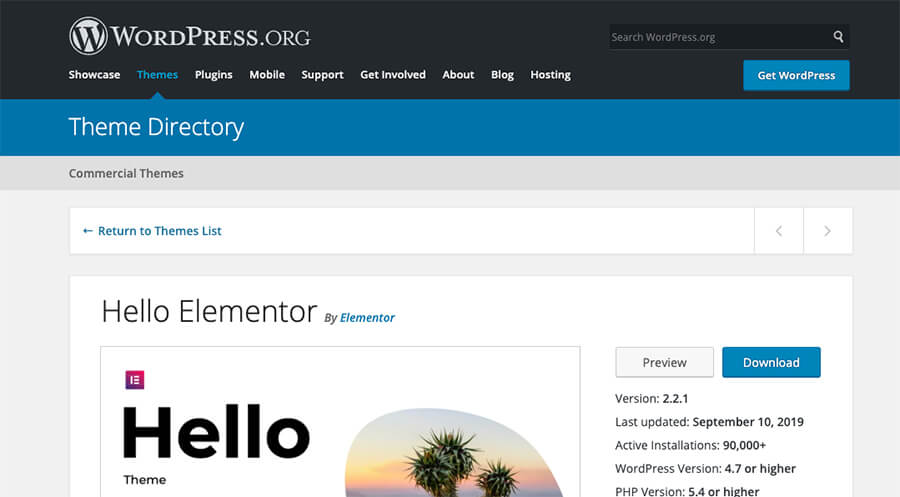
Scroll down the page until you see the “View Support Forum” button. Click on that.
This is where you can browse through questions other theme users have submitted (and had answered by the theme company), or ask your own. Though you can probably expect a quicker turnaround on a question that’s asked directly on the theme company’s website.
Either way, chances are high that there’s a buried setting for changing your font sizes somewhere within your WordPress theme—and the right help article or explanation from your theme’s support team could be exactly what you need. Take a little time to do some digging.
Now if you still can’t find any help articles and your theme developer can’t help either… my next advice is to switch to a better WordPress theme.
Here are a few of the fastest (free) WordPress themes on the market that I’d highly recommend today:
If you’ve never worked with CSS before, then switching WordPress themes is still going to be much easier than changing font size with CSS.
Now, if you’re dead set on changing font size for your blog using CSS (the next best solution if your theme doesn’t give the option), here’s how to do it.
Navigate to: Appearance → Customize
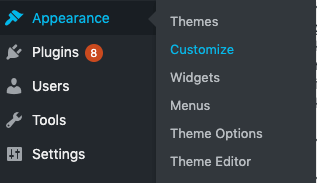
Because I’m not a developer by trade myself, I prefer adding CSS rules to my blog through the “Additional CSS” area in the “Customize” section of my Appearance Settings (rather than editing the actual CSS file of my entire site).
Once you’re in, find the menu item for “Additional CSS” and click on that.
If there’s any custom CSS already added into your theme, you’ll see it here:
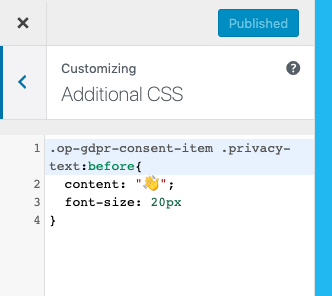
Here’s where you’ll input your new CSS rules (to change specific element font sizes across your site).
If you want to change the font size of all paragraph text <p> to 18px (for example), which is the tag used for your general body content when writing blog content, then you’d add in this following CSS rule:
p {
	font-size: 18px;
}
You can swap out the 18px for whichever font size you want your paragraph text to be—and you’re all set!
Before hitting publish: Be sure to preview the font size change in the preview area to the right of where you just added in the CSS rule, to make sure you’re getting your desired outcome.
Finally, you’re ready to hit publish and set your font size change live 👏
3. Changing Font Size in the WordPress Block Editor (Gutenberg)
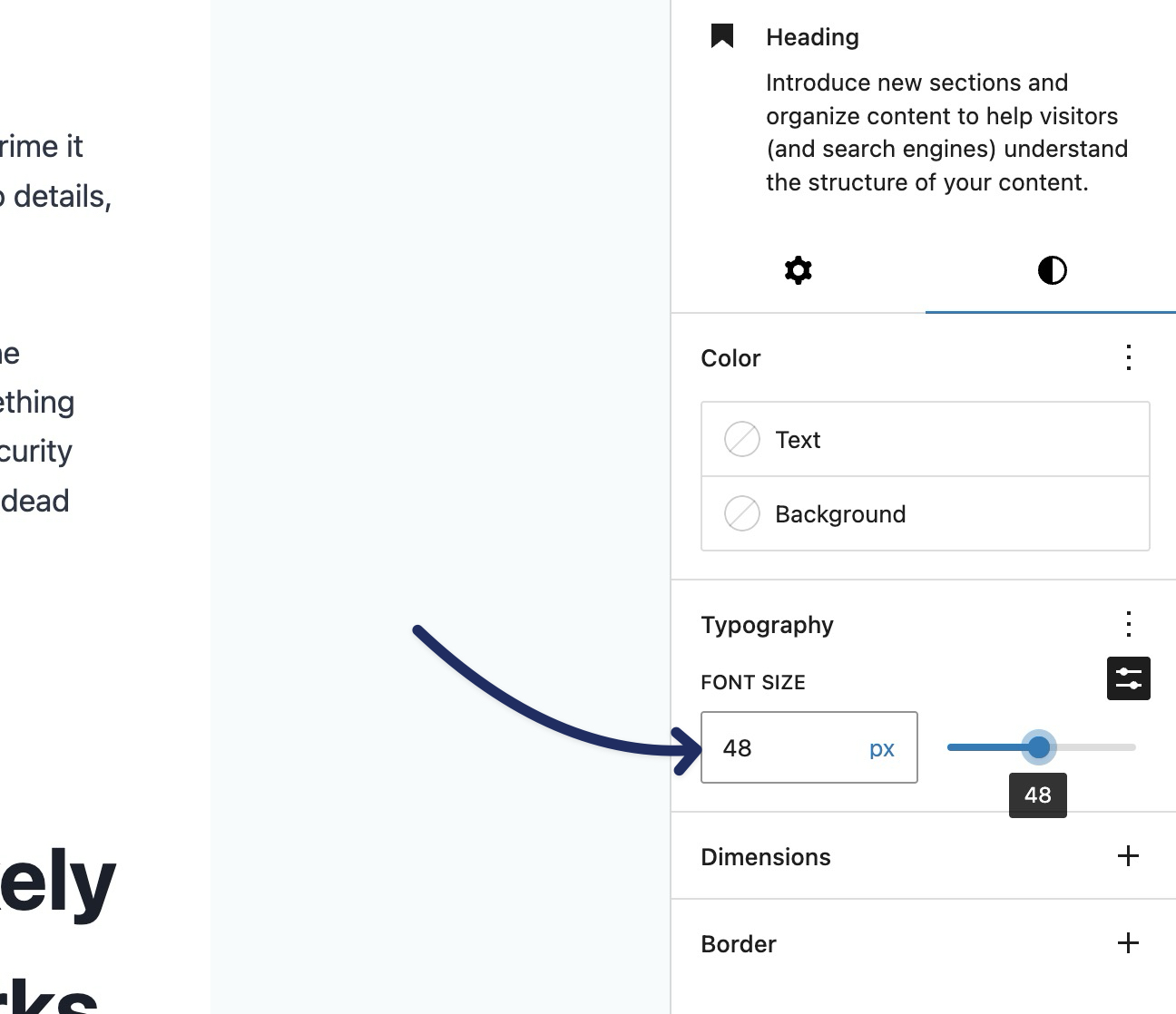
If you’re using the WordPress block editor (Gutenberg), you can change font size right inside the editor—no plugins needed.
This is the best option when you only want to adjust the font size for a specific paragraph, heading, or list inside a post (without changing your site-wide typography).
Here’s how to do it:
- Open the post or page you want to edit.
- Click the block you want to resize (Paragraph, Heading, List, etc.).
- In the right-hand Block settings panel, scroll to Typography.
- Under Font size, choose a preset size—or enter a custom size (like
18px,24px, or48px). - Preview the change, then click Update or Publish.
One important note: the exact options you’ll see here can vary depending on your theme. Some themes give you multiple presets and a custom field, while others keep it more limited.
If you want to make your font sizes more consistent across your whole site (instead of tweaking blocks one-by-one), jump back up to the section on changing font sizes in your theme settings—or consider switching to a theme with stronger typography controls (here’s my guide to the best WordPress themes to help you pick a fast one that’s easy to customize).
Final Verdict: What’s the Best Way to Change Font Size in WordPress?
Hands down, the safest and most sustainable way to change font size on your WordPress blog is by using the customizer.
If your WordPress theme doesn’t have an option for changing font size within its available settings, then I highly recommend getting a new theme. Here are 25+ to consider. Trust me, if your existing theme doesn’t have this option, what else might it be missing out on?
Finally, you can consider adding a new CSS rule that defines new font sizes for paragraph text or specific headers.
But if that’s too technical for you—then go with a WordPress plugin like TinyMCE that’ll add font size options to your content editor.
Remember though, getting a more robust WordPress theme is always going to be your best move if what you’re currently using doesn’t support changing font size.
Haven’t started your blog yet? Head over to my ultimate guide to starting a blog and jump in today.

Thanks for this post. Actually, I’m not a fan of special plugins for each things on the blog. I know that many plugins hurt WordPress speed. And I prefer to do what I want manually.
Agreed. I try and keep my plugins to a minimum as well—which is why changing font size is always best done at the theme settings level (or by CSS if that’s truly your only option).
Thanks alot Ryan, it help me alot to quickly change font size for all my post, can u please share the css code so I want to change the color of my text for all the post. i want dark black color.
Regards
Michael Norman
Great! Really glad this tutorial helped, Michael. There should actually be an easy-to-use option for changing your site-wide text color within your WordPress theme options (which would be a better way to change that vs using CSS). Do you see those options anywhere in your theme settings? Try going to Appearance > Customize and seeing if the option is there.
Thank you so much for sharing this valuable post.
You’re welcome, Mahima!
Thanks, Ryrob for sharing information on How to Change the Font Size on WordPress Blog.
Great job.
You got it! 👍
What are some ways I should market my blog
Hey Divine, I’d recommend checking out the 40 most effective ways I’ve grown my blog right here: https://capital-alignment.live/how-grow-blog/%3C/a%3E%3C/p%3E
Hi Ryan, thanks for sharing, very useful indeed. Is there a way to also adjust the font size of the title, or maybe better done in CSS (and if so, how)? thanks again!
Hey James! I’ve really only personally adjusted header font size using theme settings (rather than in CSS), and that’s what I’d tend to recommend to you as well… if your theme doesn’t allow for that kind of adjustment, I’d highly consider a move to a stronger theme that has some more flexibility across the board. That being said, check out this WP support thread I found interesting: https://wordpress.com/forums/topic/changing-header-size-in-css/
Great information and very helpful! Could you tell me the type, size and spacing of the font you used in this article?
Thanks for the kind words, Tina! Yes—I use a size 16pt font here on my blog (much more on making font choices right here too: https://capital-alignment.live/blog-layout/%3C/a%3E%29%3C/p%3E
thanks !! ryrob, it really helped on my site
You’re welcome! 🙏